> For the complete documentation index, see [llms.txt](https://fizenio.gitbook.io/docs/llms.txt). Markdown versions of documentation pages are available by appending `.md` to page URLs; this page is available as [Markdown](https://fizenio.gitbook.io/docs/help-center/fizen-pay/for-customers.md).
# For customers
## How can I make payment?
4 easy steps to pay for an order
### Step 1: Go to payment link
* If you are paying for an invoice: Open the invoice payment link your merchant sent you.
* If you are paying or an order in WooCommerce or Prestashop: Complete checkout in the eCommerce page then get redirected to Fizen Pay payment link
The URL should look like this: [https://payment.fizen.io/charges/](https://payment.fizen.io/charges/%5B12) \[12 digit alphanumeric ID]
You can see your order ID and order amount on this page.
### Step 2: Select payment token
Scroll to choose the payment token you want to pay in. Please confirm that the token you choose is on the correct blockchain network.
If your desired payment token is not on this list, don’t worry! You can choose any token in this list (the more popular the better), and then choose Fizen Super App as a payment wallet in the next step to swap and pay in one go.
### Step 3: Select payment wallet
You have three options:
* Pay with Fizen Super App (recommended). You can download Fizen Super App on Play Store (for [Android](https://play.google.com/store/apps/details?id=com.fizen.io.wallet)) or Apple Store (for [iOS](https://apps.apple.com/us/app/fizen-wallet-gamefi-payment/id1621269508)).
* Pay with Metamask (browser extension)
* Connect your wallet with WalletConnect
#### 3.1. **Pay with Fizen Super App (recommended)**
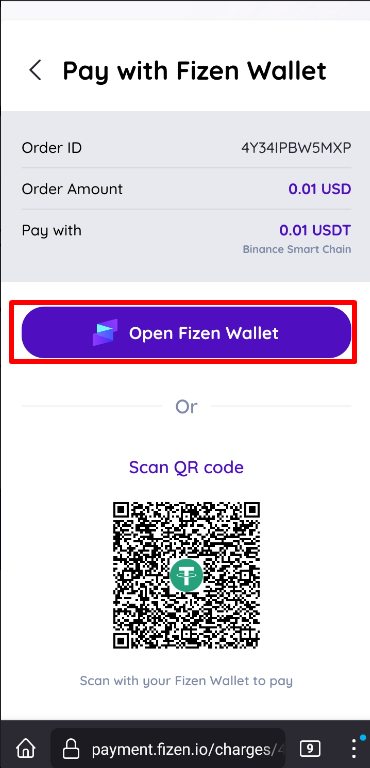
Click **Pay with Fizen Wallet** button
You will go to the **Pay with Fizen Super App** page
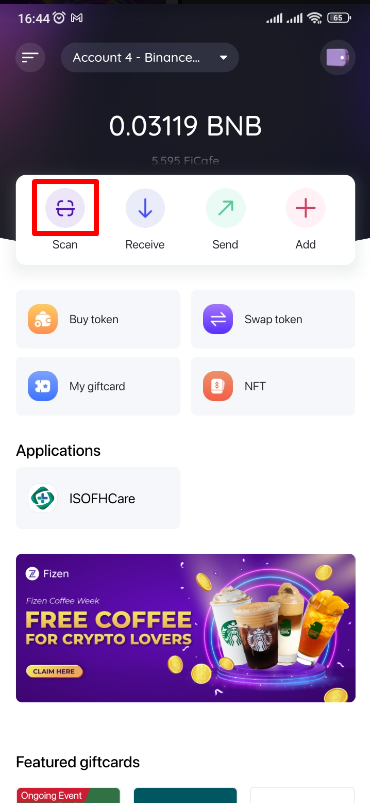
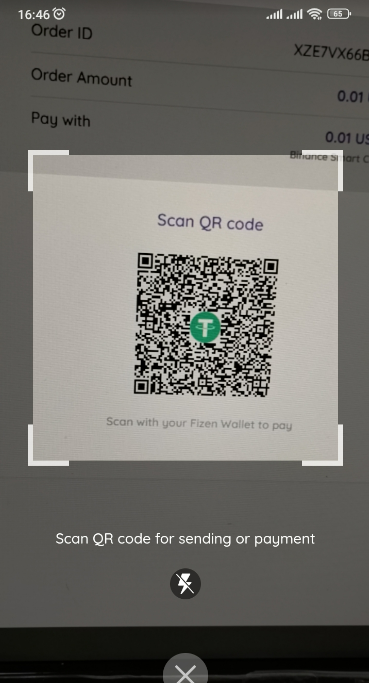
If you open the **Pay with Fizen Super App** page on a computer, open Fizen Super App on your phone and scan the QR code.
If you open the **Pay with Fizen Super App** page on a phone, you just need to tab the **Open Fizen Super App** button.
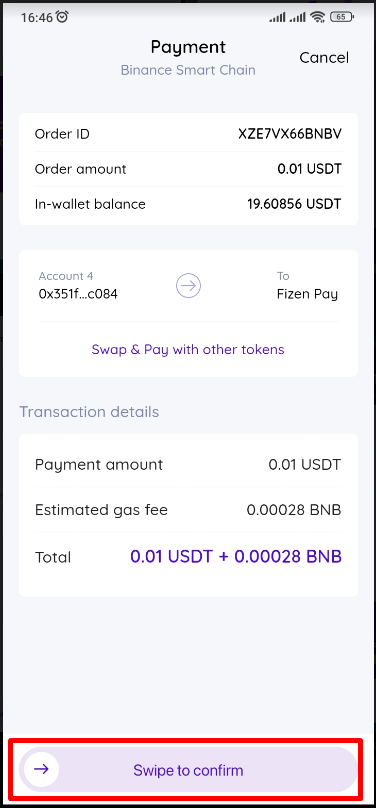
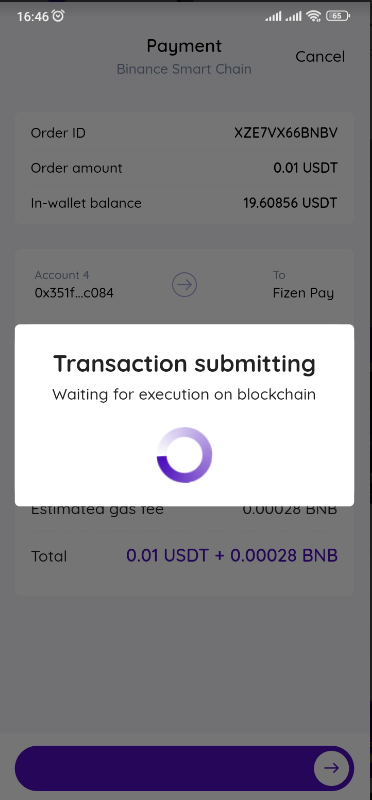
In your Fizen Super App, after logging in, it will show the below payment screen. Swipe to confirm payment.
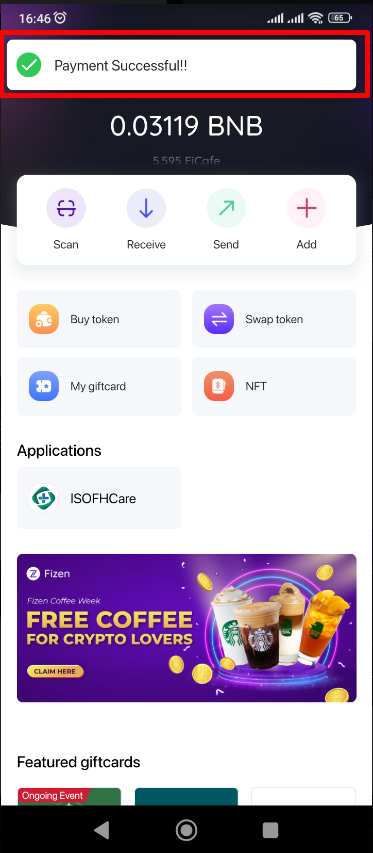
The payment transaction will take 2\~3 seconds to be processed on blockchain.
When it is done, you will receive the alert message:
#### **3.2.** Pay with MetaMask
Click **Pay with Metamask** button
It will open your Metamask browser extension.
If your MetaMask is not logged in, you will be asked to log in.
If your MetaMask is on a blockchain network different from the blockchain network you are paying in, you will be asked to add or switch to that blockchain network in your Metamask.
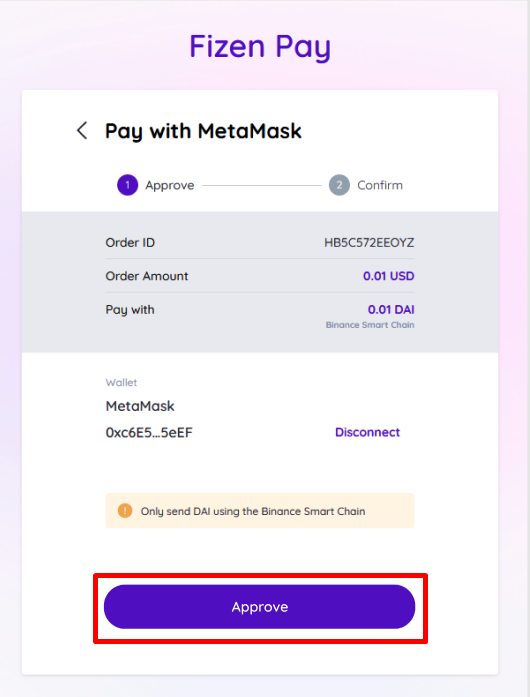
Double check the payment amount, token, blockchain network, then click **Approve**.
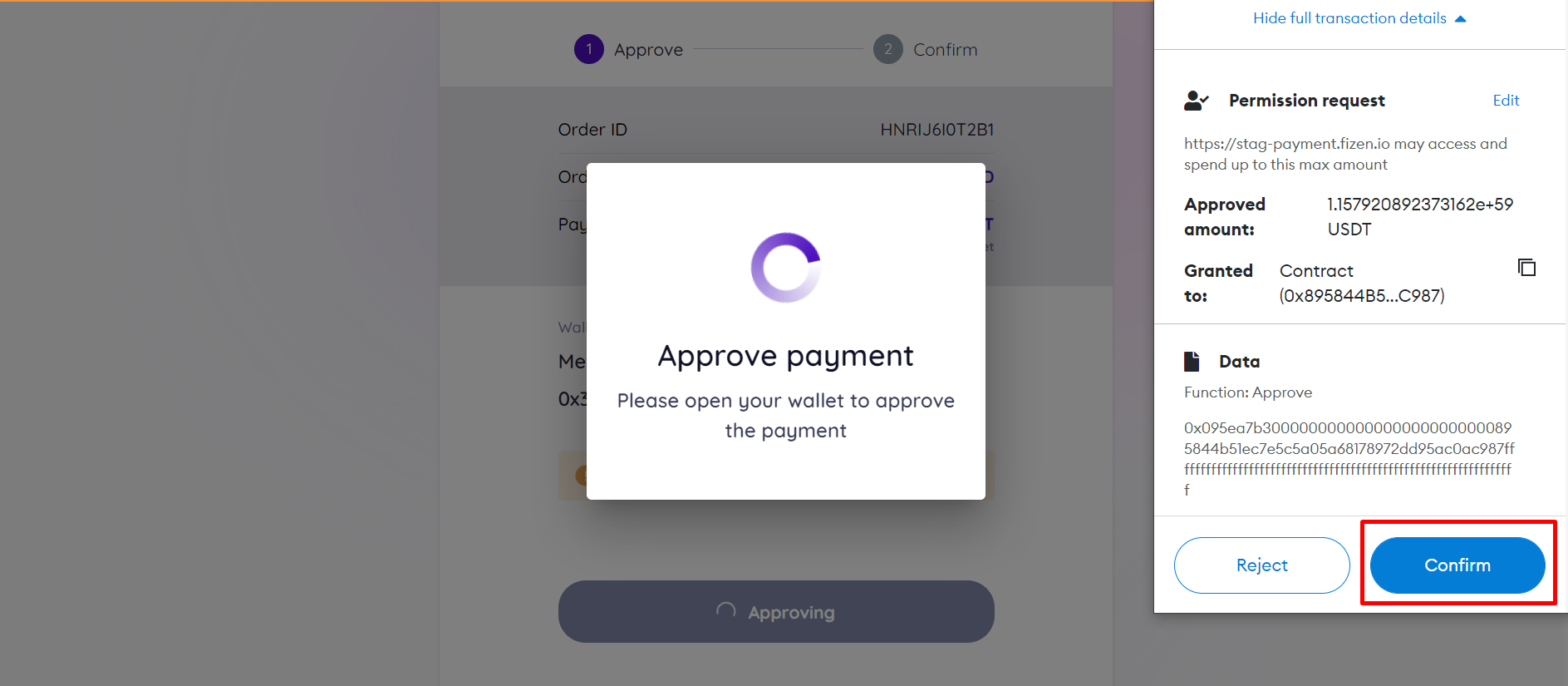
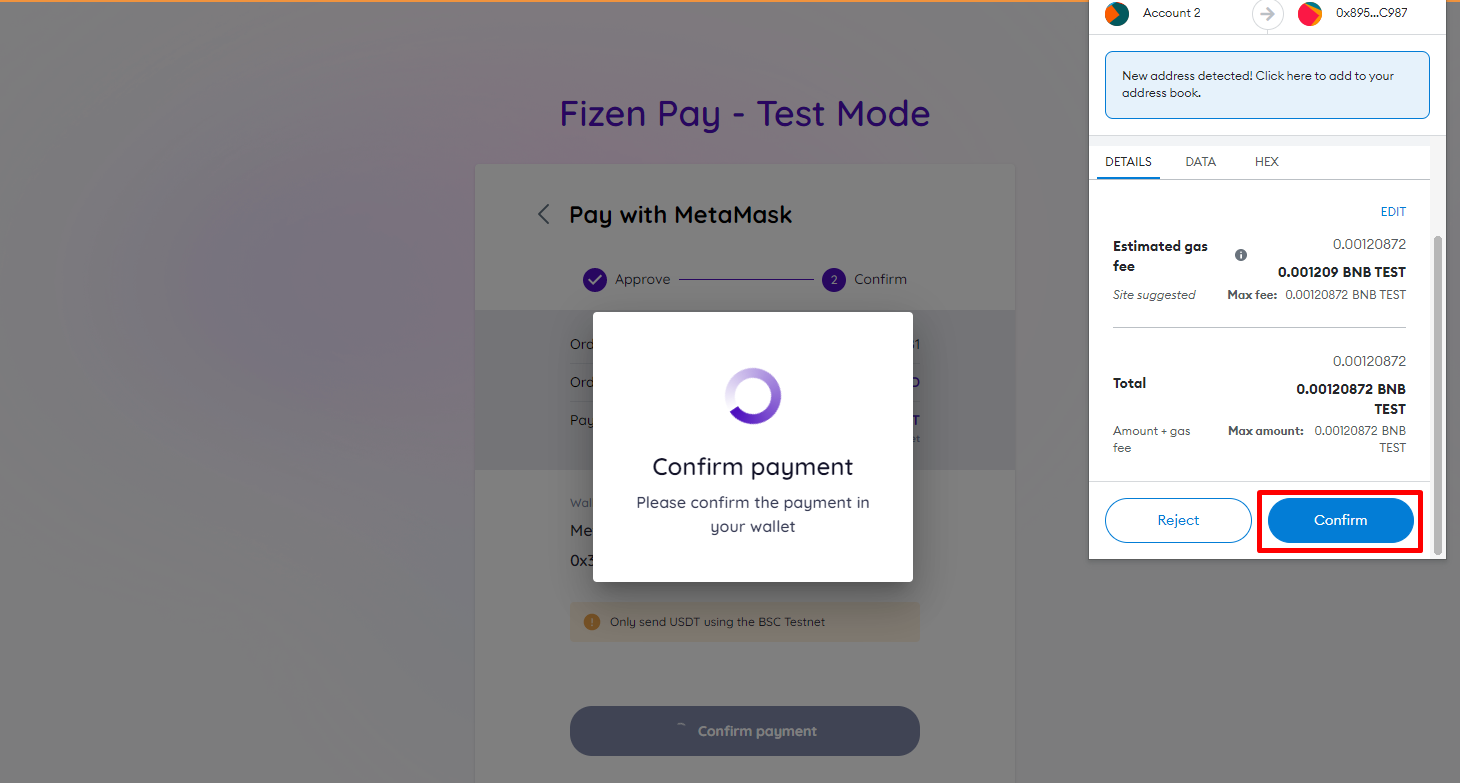
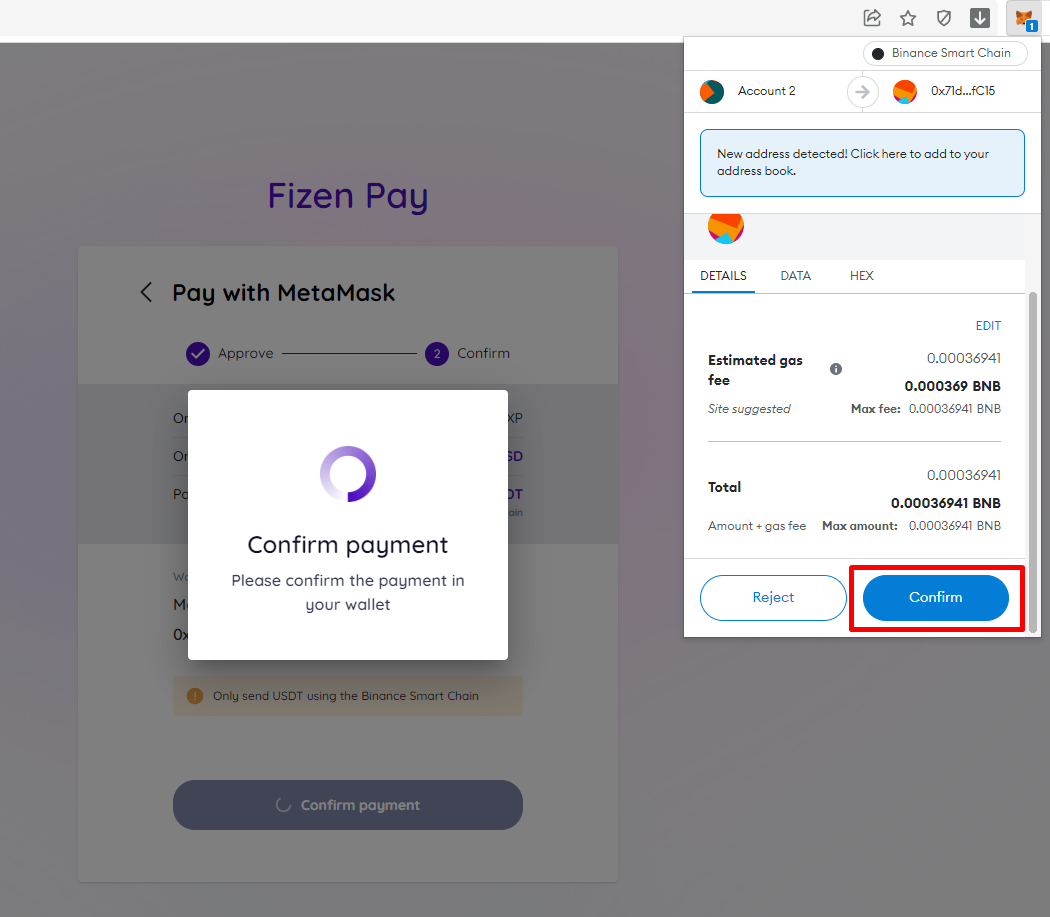
Click **Confirm** in your Metamask to approve payment
Then, click **Confirm** in your Metamask to confirm payment
**Please note that from the next time you pay for an order from this merchant, you will not have to approve your payments again. You will go straight to the Confirm step.**
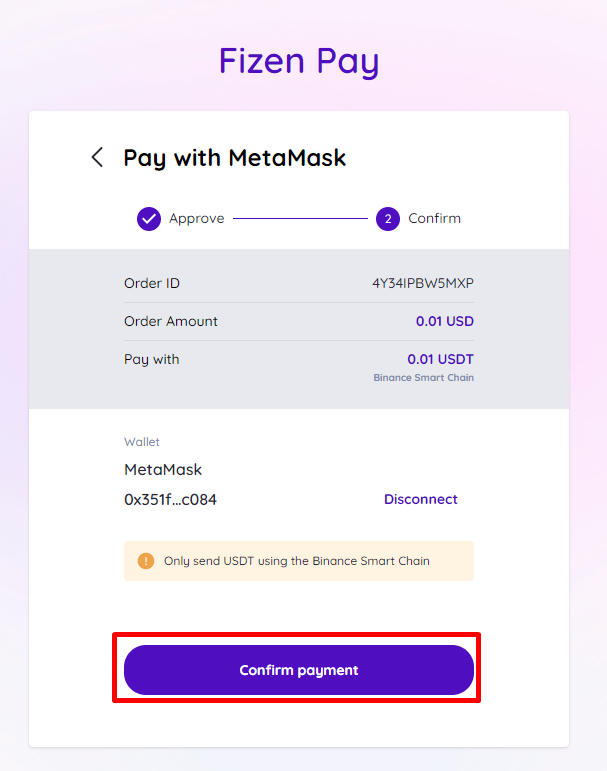
Similarly, click **Confirm payment** in the payment URL, then click Confirm in Metamask to complete the payment.
#### **3.3. Use WalletConnect**
Click **WalletConnect** button
Scan the QR code with a WalletConnect-compatible wallet.
Then, proceed with the payment using your wallet.
### Step 4: Check receipt
After your wallet confirms that the transaction was executed, your payment link will take about 3 seconds to update payment status.
After that, if you were paying for an invoice, you will see the receipt as below.
If you were paying for an order in a store, you will be redirected to the order page.
You may want to save the **order ID** and the **merchant email address**, just in case you need to contact the merchant to follow up your payment.
See more:
[Why does my receipt state that I overpaid an order? What should I do? ](https://pay-faqs.fizen.io/for-customers/payment-status#why-does-my-receipt-state-that-i-overpaid-an-order-what-should-i-do)
[Why does my receipt state that I underpaid an order? What should I do? ](https://pay-faqs.fizen.io/for-customers/payment-status#why-does-my-receipt-state-that-i-underpaid-an-order-what-should-i-do)
[Why does my receipt say that I have made multiple payments? What should I do? ](https://pay-faqs.fizen.io/for-customers/payment-status#why-does-my-receipt-say-that-i-have-made-multiple-payments-what-should-i-do)
[Why does my receipt say that my payment was delayed? What should I do? ](https://pay-faqs.fizen.io/for-customers/payment-status#why-does-my-receipt-say-that-i-have-made-multiple-payments-what-should-i-do)
[Why does my payment link say that my payment expired? What should I do? ](https://pay-faqs.fizen.io/for-customers/payment-status#why-does-my-payment-link-say-that-my-payment-expired-what-should-i-do)